How to turn a photo into a fuse bead pattern: one photo, three approaches
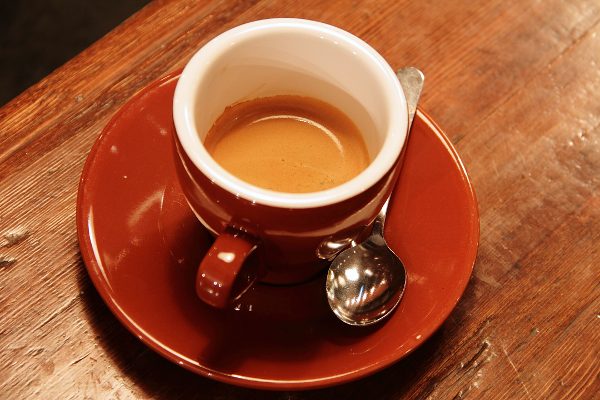
Three things decide whether a photo makes a good bead pattern: crop to the subject, keep the size at 40–56 beads (bigger is not better), and limit it to 12–16 colors. We ran a coffee-cup photo through Pindou Studio: with the default settings (100 beads, 16 colors) it needed 6,700 beads and the wooden table turned into scattered specks; cropped and set to 40 beads and 12 colors, it needed only 1,440 beads, the cup filled the frame and its outline got cleaner.
Decide how big first: the pattern size is the real size
In Pindou Studio, “size” means how many beads run along the longest side. Common beads come in 5 mm (standard) and 2.6 mm (mini), so the finished size is simply beads × bead diameter:
| Size (longest side) | 5 mm beads | 2.6 mm beads | Good for |
|---|---|---|---|
| 24 beads | about 12 cm (4.5 in) | about 6 cm | Keychains, magnets |
| 29 beads | about 14.5 cm (5.5 in) | about 7.5 cm | Coasters (one common 29×29 square pegboard) |
| 40 beads | about 20 cm (8 in) | about 10.5 cm | Small wall art, ornaments |
| 56 beads | about 28 cm (11 in) | about 14.5 cm | Wall art |
| 100 beads | about 50 cm (19.5 in) | about 26 cm | Large wall art, thousands of beads |
At 100 beads a pattern looks most like the photo on screen, but in 5 mm beads it is half a meter wide. Our coffee-cup photo at 100 is a 100×67 grid — 6,700 beads. Pick what you are making before you chase likeness.
Tested: one coffee-cup photo, three approaches
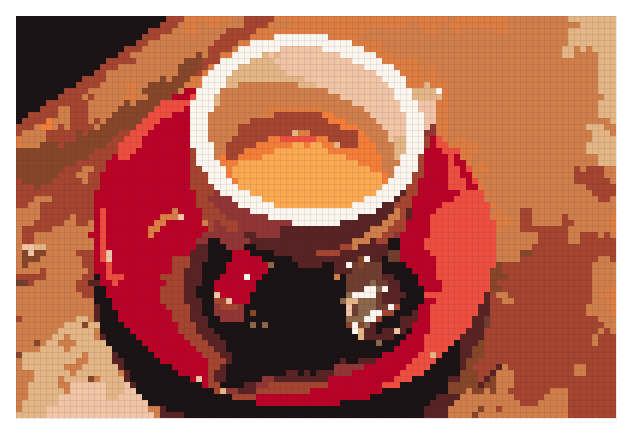
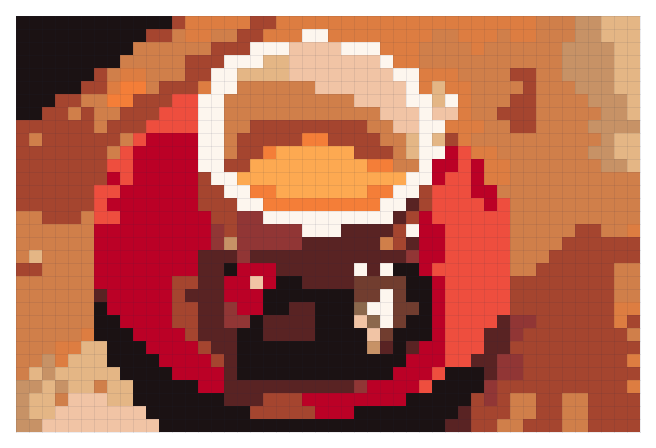
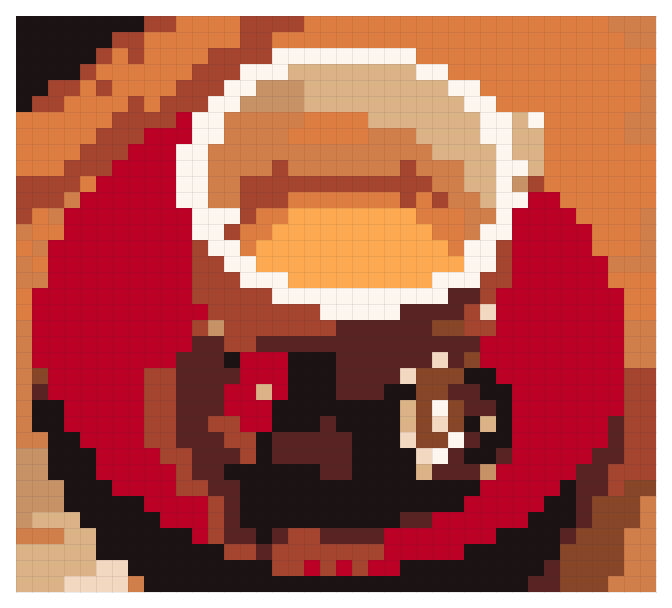
| Approach | Grid | Colors | Beads | Built-in quality check |
|---|---|---|---|---|
| A. Defaults | 100×67 | 16 | 6,700 | 55 |
| B. Smaller size only | 48×32 | 16 | 1,536 | 66 |
| C. Crop + 40 beads, 12 colors | 40×36 | 12 | 1,440 | 63; 77 after tidying 4 beads |
The pictures say more than the scores. A looks most like a photo, but the wood grain and shadows turn into scattered specks that are tedious to place. B cuts the bead count to a quarter, yet the cup is a small blob in the middle. C crops away half the table: about the same bead count as B, a noticeably bigger cup, and the white rim reads as one unbroken ring.
The quality score only measures how easy a pattern is to build — stray single beads, beads touching only at a corner, one-bead-wide bridges that break, and colors too close to tell apart. It does not judge whether the subject is clear, which is why C did not score highest at first. One click on “Tidy up” changed 4 stray beads and raised it from 63 to 77.
A counter-intuitive one: don’t remove the background from photos
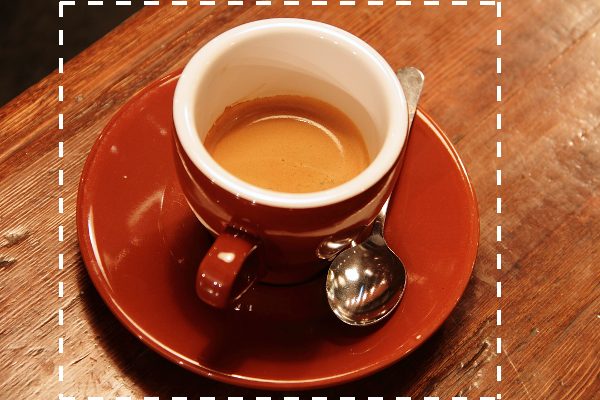
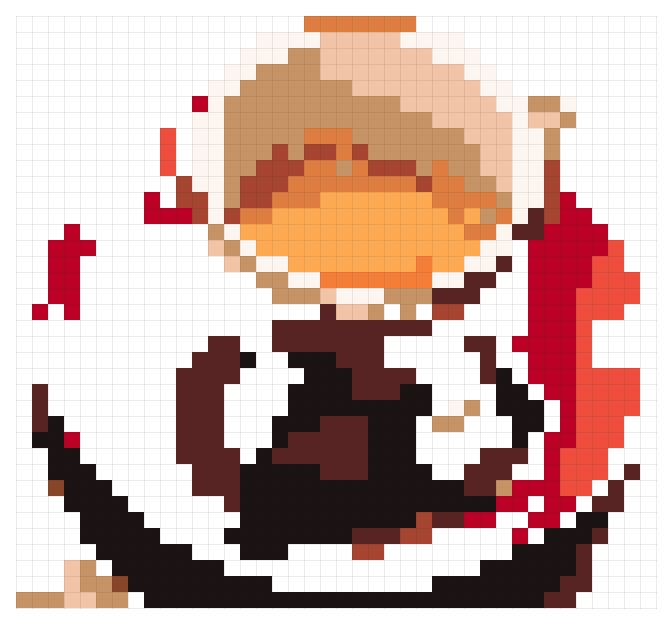
Automatic background removal guesses the background from color and edges. In this photo the white cup and the highlights on the saucer are about as bright as their surroundings, so they went too, leaving a big hole in the cup. That is why Pindou Studio keeps the background on photos by default and only removes white or solid-color backgrounds automatically.
If you really want just the subject, cut the background out in your phone’s photo app or any editor, replace it with plain white, then upload. With a clean background, automatic removal keeps exactly the subject.
Which photos convert well
- The subject fills at least half the frame. If it was shot from far away, crop it — that is the whole difference between B and C above.
- Even light. Hard shadows become big patches of dark beads, like the shadow under this cup.
- Subject and background in clearly different colors. A white cup on a white table loses its edge.
- Less fine texture. Wood grain, knitted sweaters and grass turn into stray specks below about 48 beads.
- Pixel art needs no tuning. If the picture is already pixel art, such as a game sprite, Pindou Studio keeps its original grid: one pixel, one bead.
After the pattern is made: five minutes of finishing
- When the “Quality check” panel says some beads can be tidied, click “Show me” to see where, then “Tidy up”. It can be undone.
- Want a single-color background? Pick the Bucket and click the background to fill the connected cells.
- Wondering where a color is used? Click it in the color list, then “Highlight”; if you don’t need it, use “Replace with”.
- Don’t own every color? Turn on “Only use colors I own”, tick the codes you have, and the pattern uses only those.
- Export a PNG chart with color codes, row and column numbers and bead counts per color, plus a shopping list of how many beads to buy for each code.
Still looks like a mosaic? Redraw the photo as flat color first
Light and shadow in a photo change smoothly, while beads come in a few dozen fixed colors, so some fragmentation is unavoidable. Members can use “AI redraw” to repaint the photo as a flat-color illustration on white (styles include “Photo to flat illustration”, “Anime flat color”, “Chibi” and “Sticker”) before making the pattern. Flat images give tidy color areas and clean outlines — most noticeable with pets and portraits.
Try it with your own picture
Upload a photo, avatar or drawing and get a pattern in seconds. Creating, previewing and editing are free.
Upload a picture and make a patternBrowse ready-made patternsFAQ
Is turning a photo into a bead pattern free?
In Pindou Studio: Creating, previewing and editing are free and unlimited. Exporting needs an account: each account can export 9 patterns for free, and membership removes the limit — $4.99 a month, $29.99 a year, or $59.99 once for lifetime access.
What size should a photo bead pattern be?
Start from what you are making: 20–24 beads for a keychain, about 29 for a coaster, 40–56 for wall art. Portraits and pets need at least 40, or the eyes blur.
Why does my photo pattern look like a mosaic?
Usually the size is too big, there are too many colors, or the background is busy. Crop to the subject, drop the size to 40–56 and the color limit to 12–16. If that is not enough, use AI redraw to turn the photo into flat color first.
Can I use only the bead colors I already have?
Yes. Turn on “Only use colors I own” and tick your codes. The default palette is MARD 221; MARD 113, MARD 48 and several other popular brands are available too.
Sample photo: the coffee cup is from the scikit-image sample collection, photographed by Rachel Michetti, released under CC0 (public domain).